Changing layer size with the Scale tool
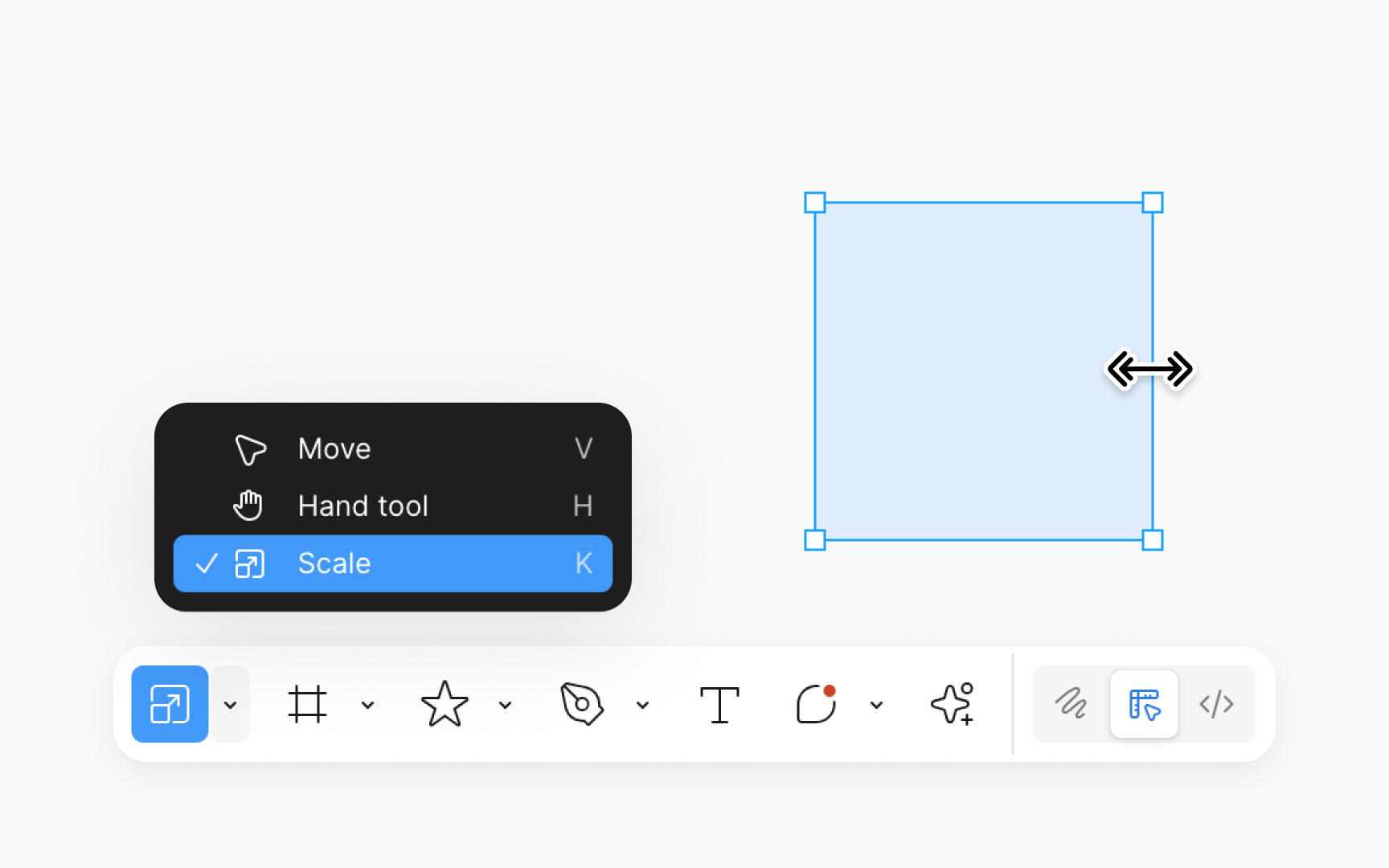
The Scale tool in Figma is used to proportionally resize layers and objects while preserving aspect ratios. To change the size of a layer using the Scale tool in Figma, follow these steps:
- Activate the Scale tool by pressing K or selecting it from the bottom toolbar.
- Select the object you want to resize.
- Hover over the object's bounding box, then click and drag to resize it. Or, in the Scale panel of the right sidebar, open the dropdown to select a scale multiplier or type a multiplier value in the text field and press Enter (Windows) or Return (Mac) to apply a specific scaling factor.
- Alternatively, modify either the width or height fields in the Scale panel of the right sidebar. The other dimension field will automatically update to maintain the aspect ratio.
Pro Tip: Change the anchor point of the layer in the right sidebar after selecting the Scale tool to determine which direction the object scales in.