How to Use Dividers to Organize Content
Separate and structure interface elements with the right type of visual divider
Interfaces contain a lot of information, and users need help making sense of it. Dividers create visual separation between content groups, establishing hierarchy and making layouts easier to scan. Without them, elements blur together. With too many, interfaces feel cluttered and rigid.
The word "divider" often brings lines to mind, but effective separation takes many forms. White space creates breathing room without adding visual weight. Color contrast distinguishes sections while reinforcing brand identity. Shadows add depth and suggest layering. Images can act as natural breaking points between content blocks. Lines, both horizontal and vertical, provide explicit boundaries when subtler approaches aren't enough.
Choosing the right divider depends on context. A content-heavy dashboard might need clear line dividers to keep data organized. A marketing page might rely on generous white space and color shifts to guide users through a narrative. The goal is always the same: help users understand where one section ends and another begins without the dividers themselves becoming distracting.


Horizontal
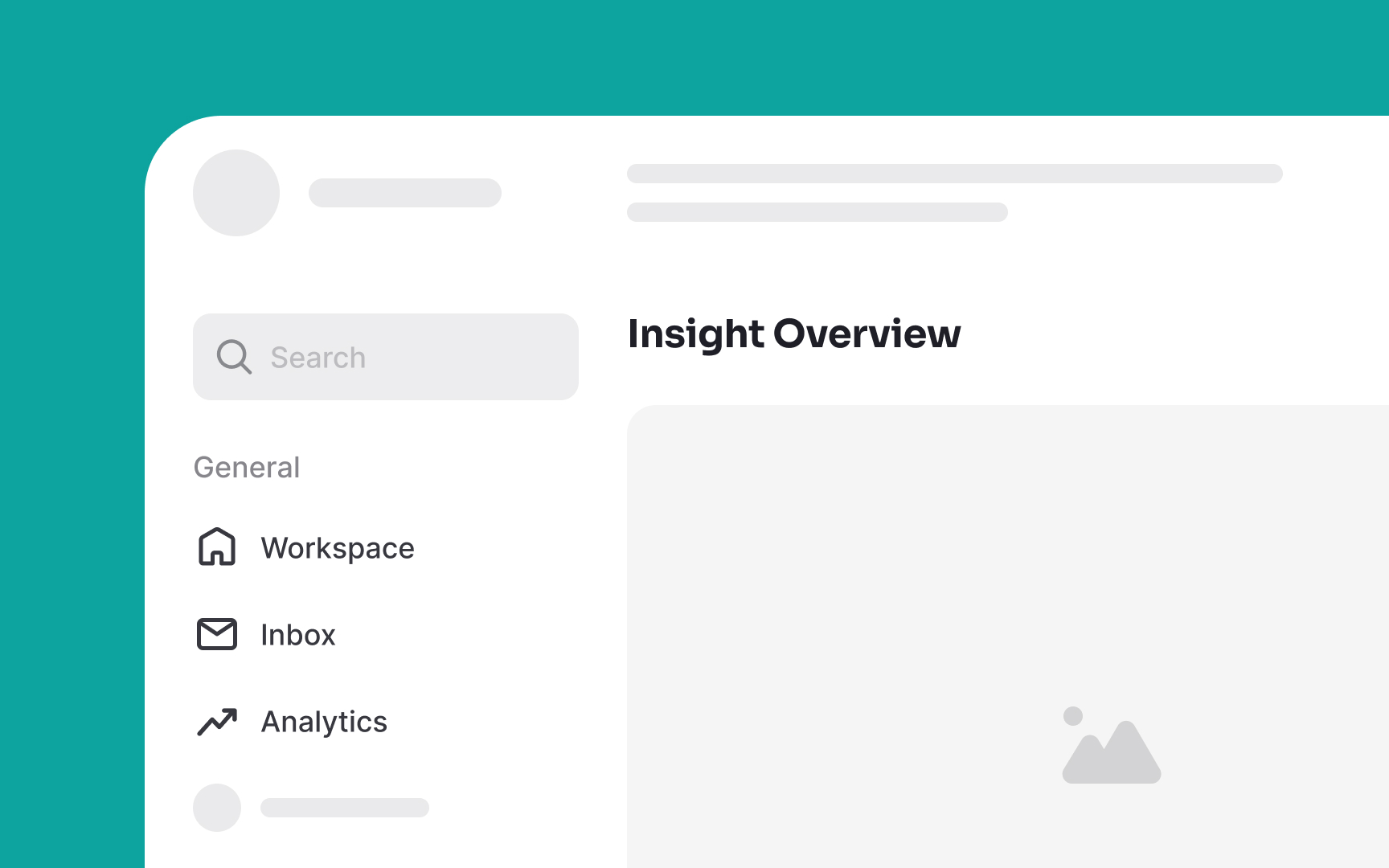
- Full-bleed dividers: These lines extend from one end of the container to the other, creating a clear and bold separation. They offer a dramatic and decisive visual break between content blocks or sections, making the separation highly noticeable. You can use full-bleed dividers to separate different content groups or even interactive and non-interactive sections of an interface.
- Inset dividers: These lines are set within the boundaries of the content, rather than extending to the edges of the container. They provide a more subtle separation, maintaining a clean and organized appearance without a strong visual impact. They are most suitable for separating related content within a list, such as emails in an inbox. Always use them along with visual anchors like icons.[1]
Pro Tip: Combine full-bleed and inset dividers to establish a hierarchy of information within the interface.
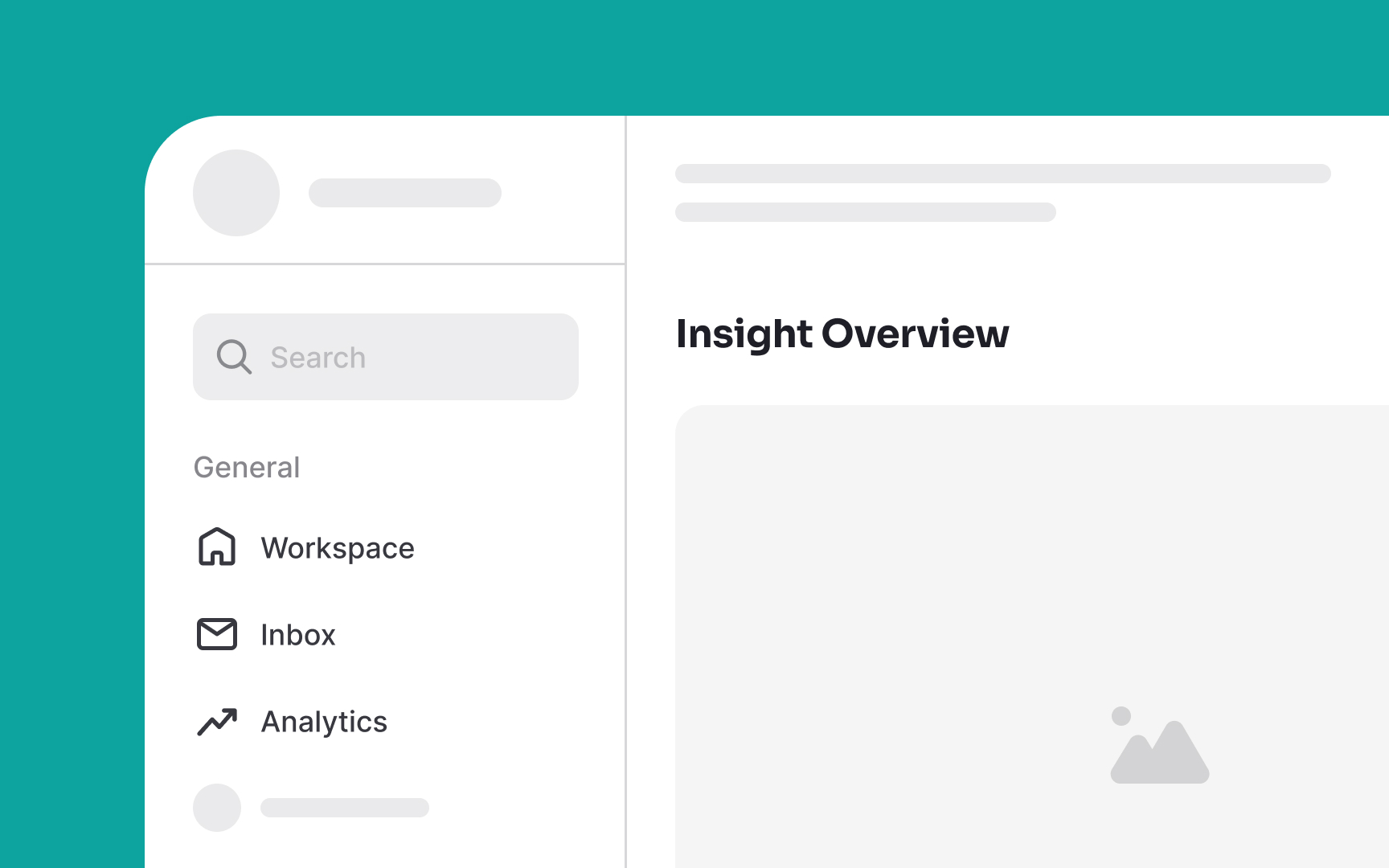
Vertical line
Adjust the width of these dividers for a subtle or bold impact, but be sure to keep it consistent across your interface. You can also add a subtle indicator such as a small word positioned in the middle of the line to further enhance the differentiation. For example, you can use the word “or” in the middle of a vertical line separating a sign-up and login form.
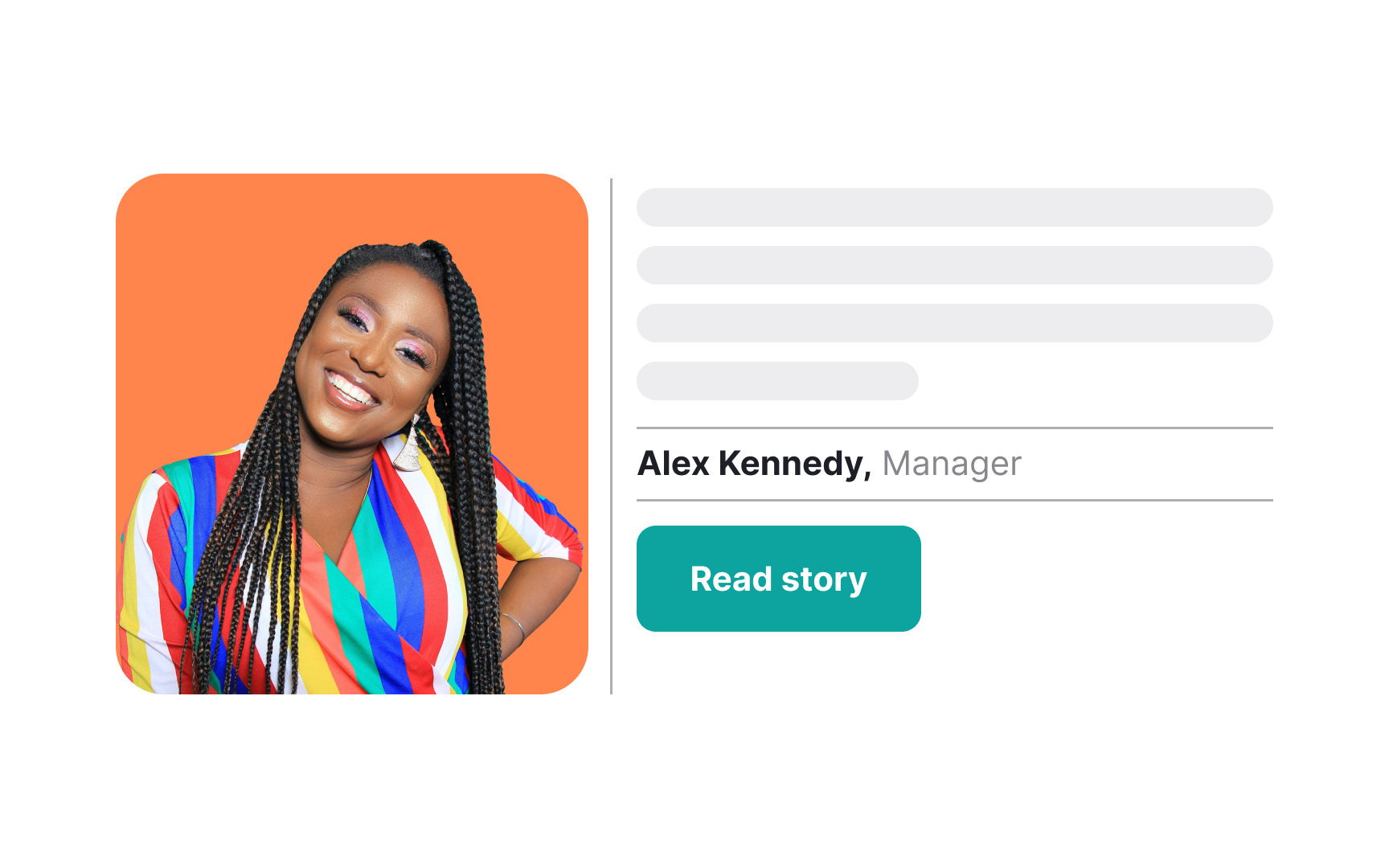
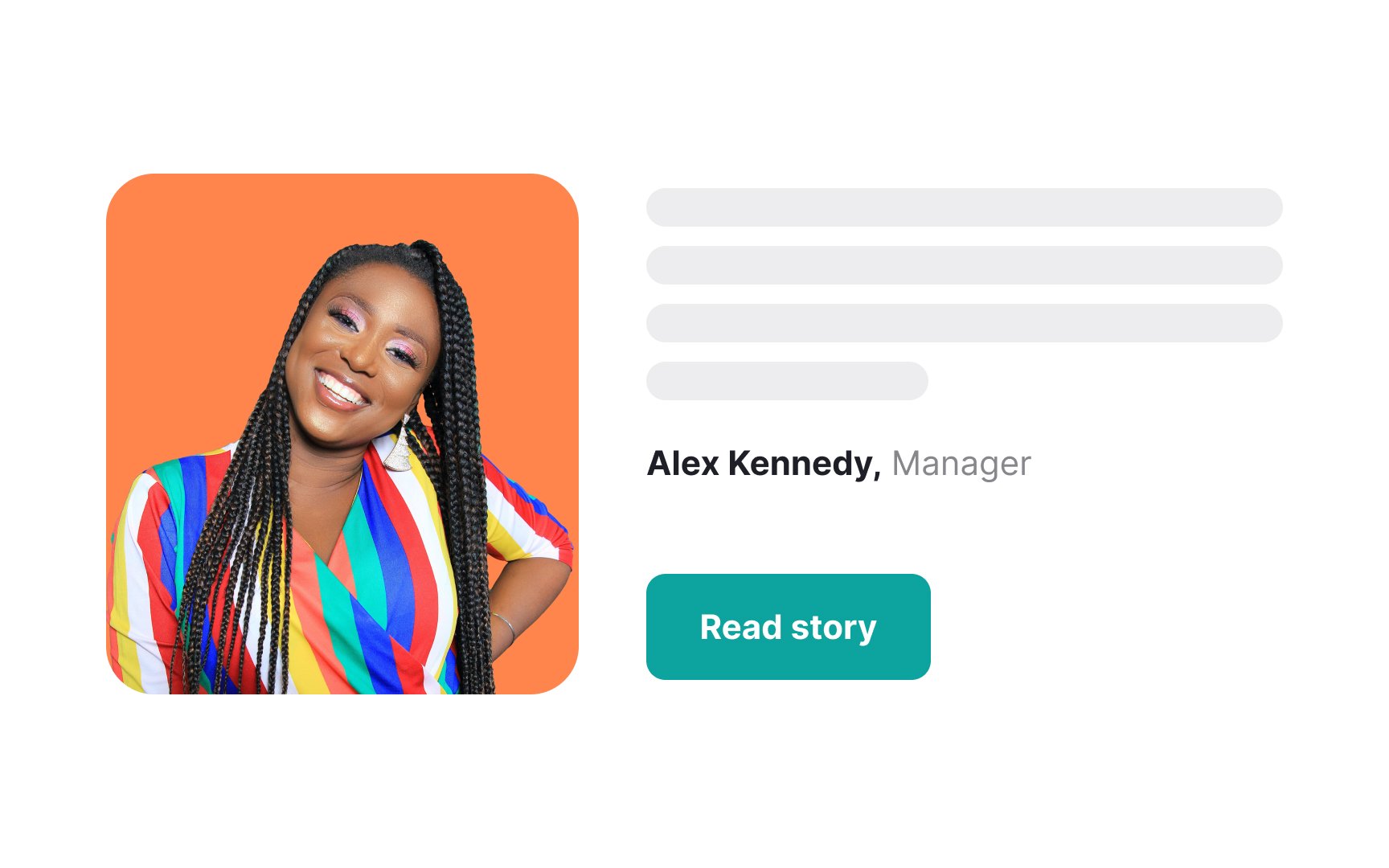
The proximity principle suggests that elements close to each other are perceived as a cohesive group, making judicious use of negative space effective in creating distinct
Moreover, you can embrace asymmetry, allowing negative space to guide users' focus and provide a sense of balance. Use varying amounts of negative space to emphasize important elements.

For a subtle separation, use a slightly darker or lighter shade than the background color. Alternatively, for a more dramatic effect, employ contrasting colors, such as pairing dark elements with a light background or vice versa. This not only acts as a divider but also adds visual interest to the content you want to emphasize.

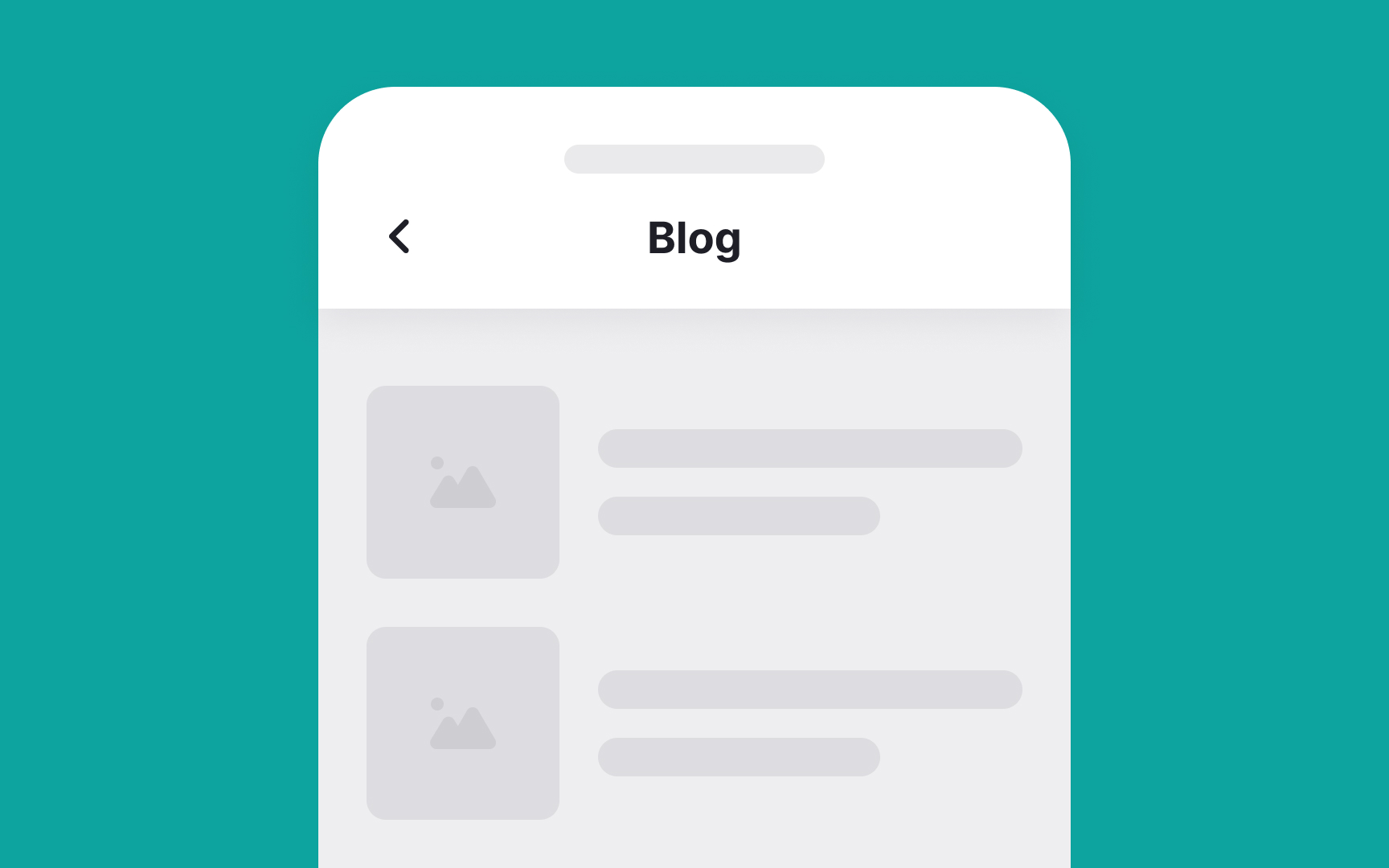
Shadow
You can also apply shadows strategically to separate
Pro Tip: Ensure that the shadow's contrast with the background is sufficient for visibility while maintaining a balance to avoid a cluttered or distracting appearance.
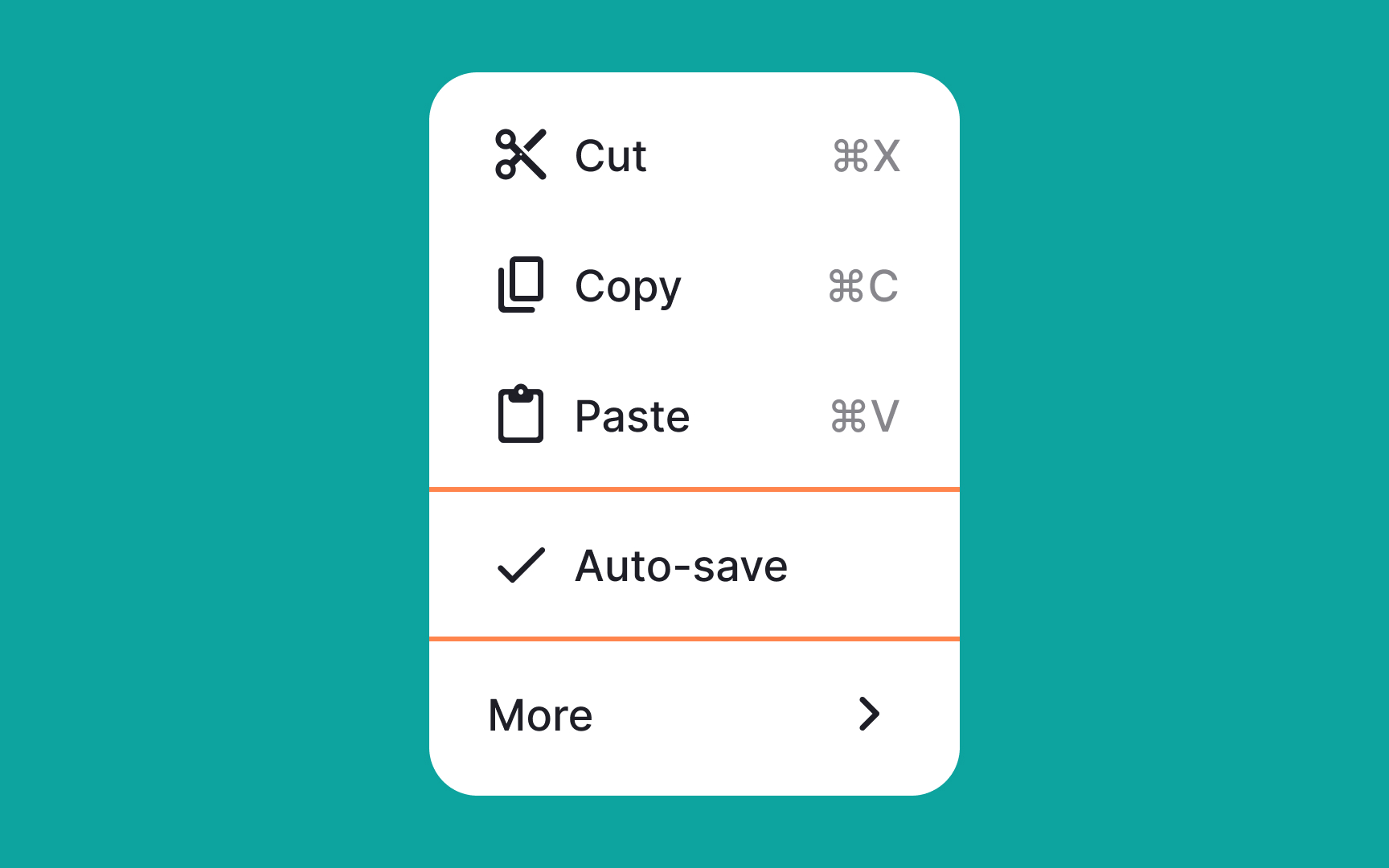
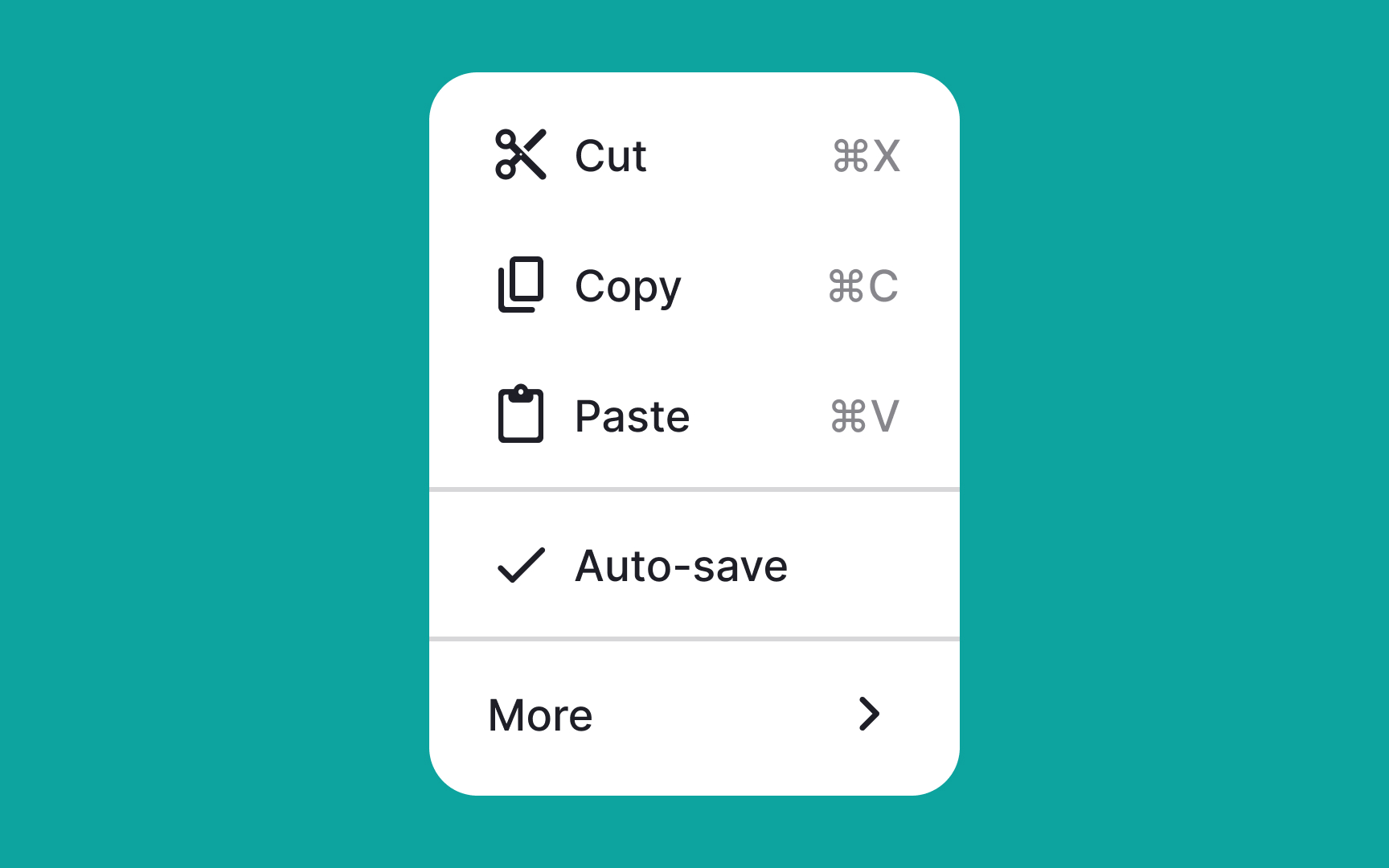
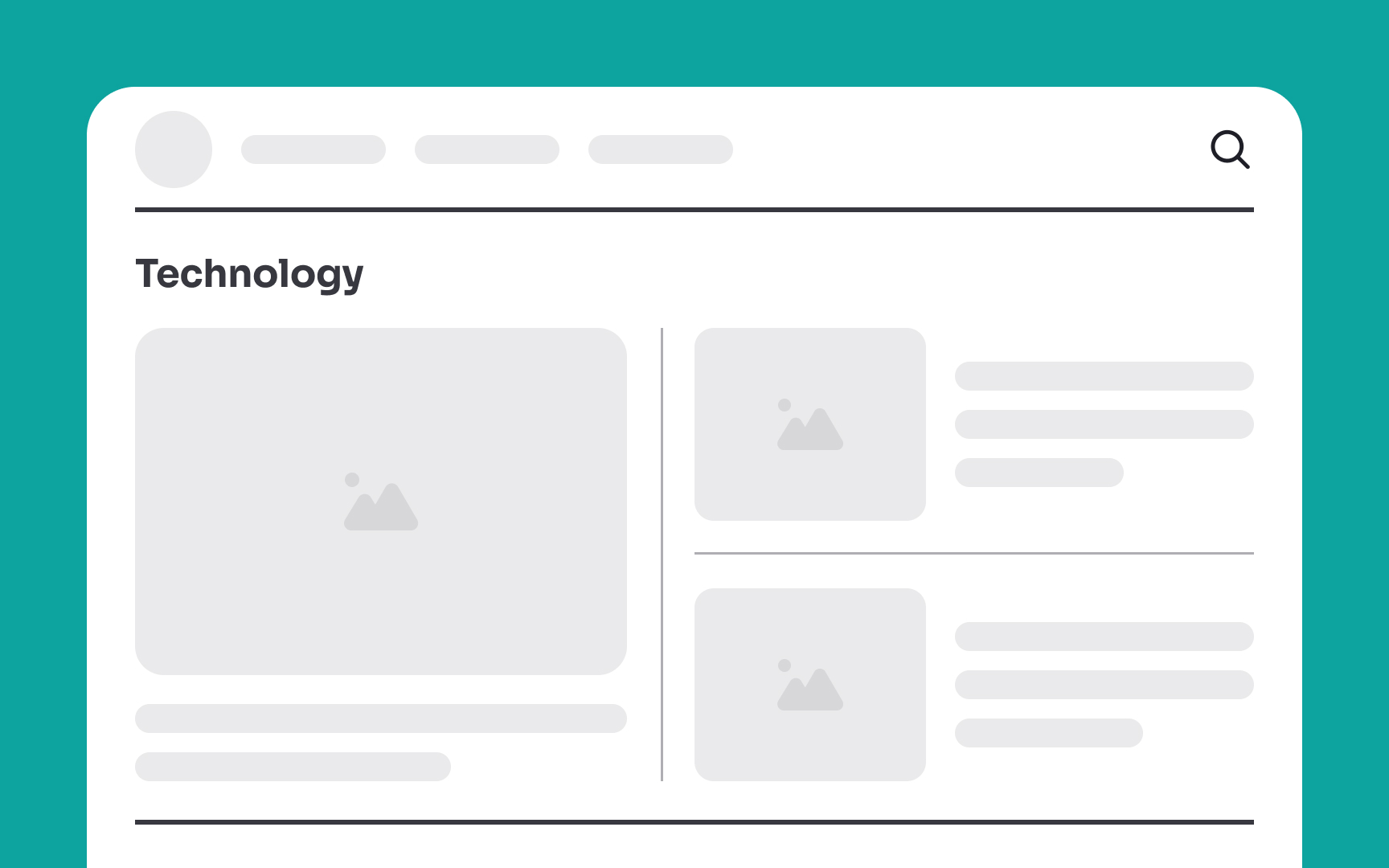
For example, in a blog layout, use subtle 1px lines between paragraphs for a clean reading experience. You can use bold 2px lines to more distinctly separate different sections on a landing page. Just keep in mind that the goal is to make dividers noticeable enough for users to navigate effortlessly but not so attention-grabbing that they overshadow the content.
When designing a
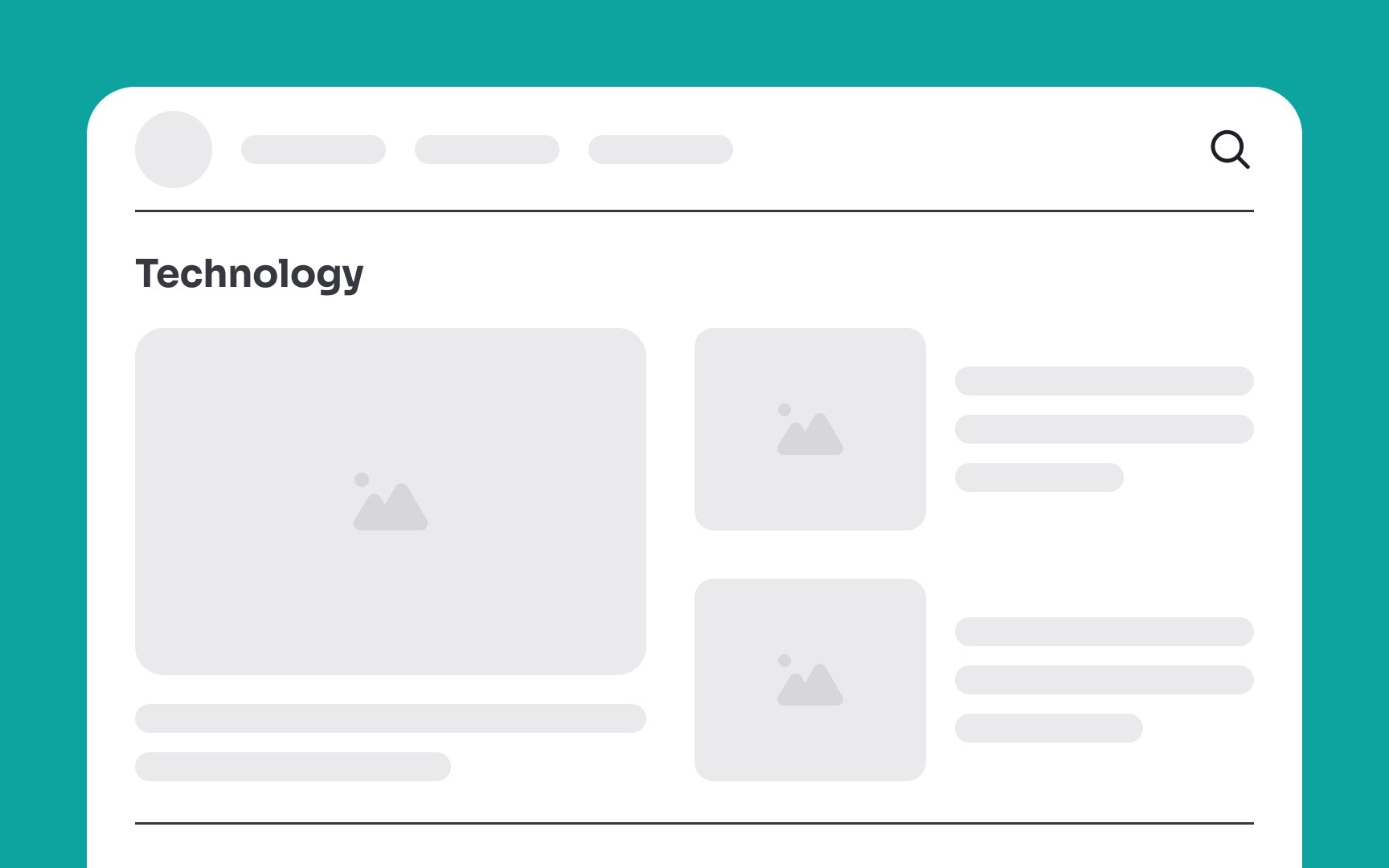
Instead, strategically using
References
- Divider – Material Design 3 | Material Design
- Visual Dividers in Mobile UI Design | Medium
Top contributors

Topics
From Course

Share


Similar lessons

Common UI Components Part I

Image Terminology