Background blur
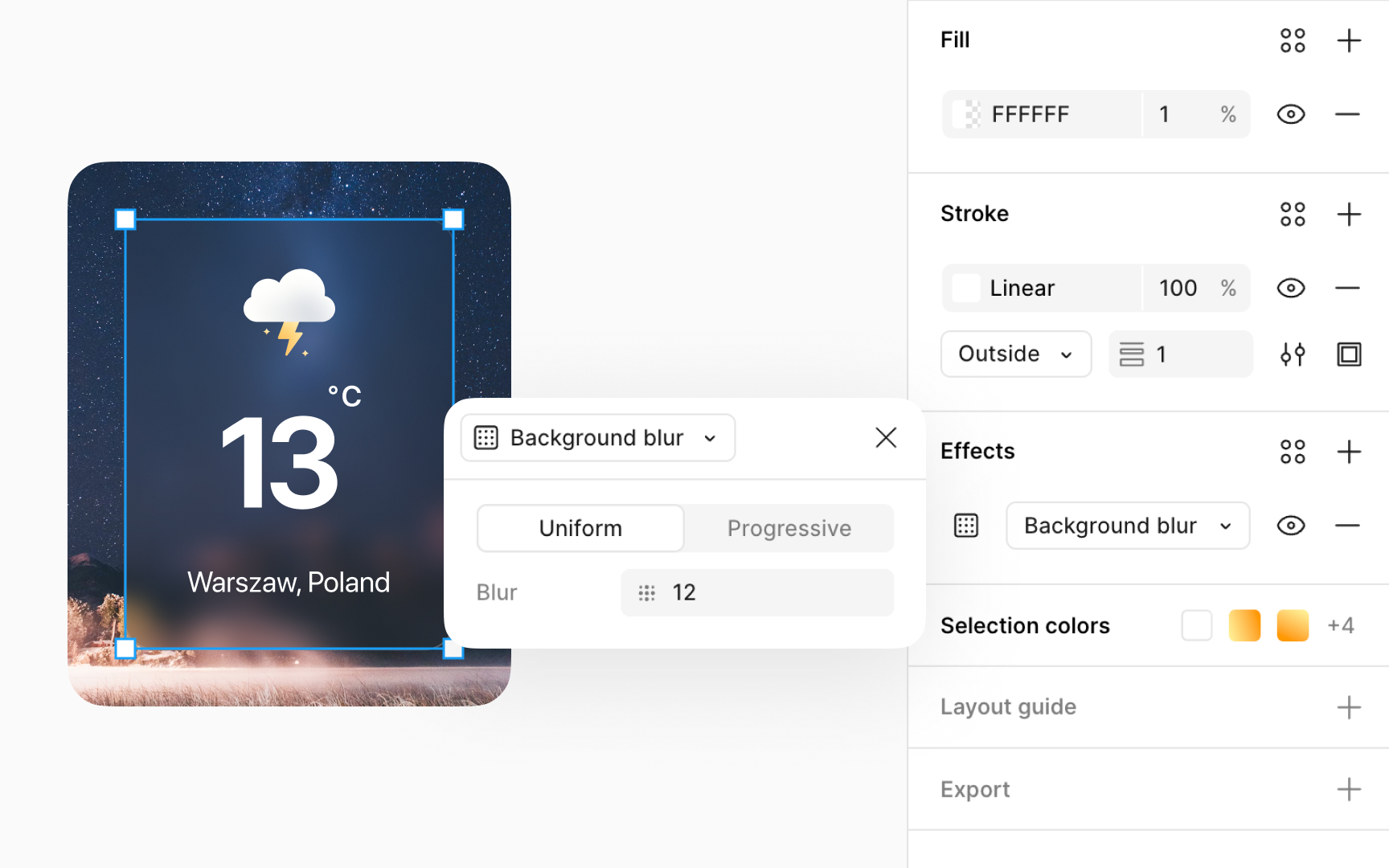
Background blurs add a soft, out-of-focus effect to the area behind a selected layer, unlike layer blurs that blur the layer itself. Use background blur to shift focus towards the primary layer, ideal for highlighting interactive menus or obscuring sensitive details in screenshots. Commonly seen in iOS menus, background blur enhances UI design by softening the background, making the foreground elements stand out.
To add a background blur effect, go to the Design panel, open the Effects section, and choose Background blur from the dropdown. Click the Effect settings icon, and you’ll find two types of Layer blur:
- Uniform blur: Applies a constant blur across the entire layer. Select the Uniform option and enter the desired blur value.
- Progressive blur: Applies a blur that increases or decreases gradually across the layer. Select the Progressive option to adjust the start and end blur values.
Keep in mind that for the blur effect to be visible, the selected layer must have some transparency. You can adjust the top layer's opacity to be anywhere from 0.10% to 99.99% in the Fill section in the Design panel. Remember, a layer set to 100% opacity will block the background blur entirely.