Layer blur
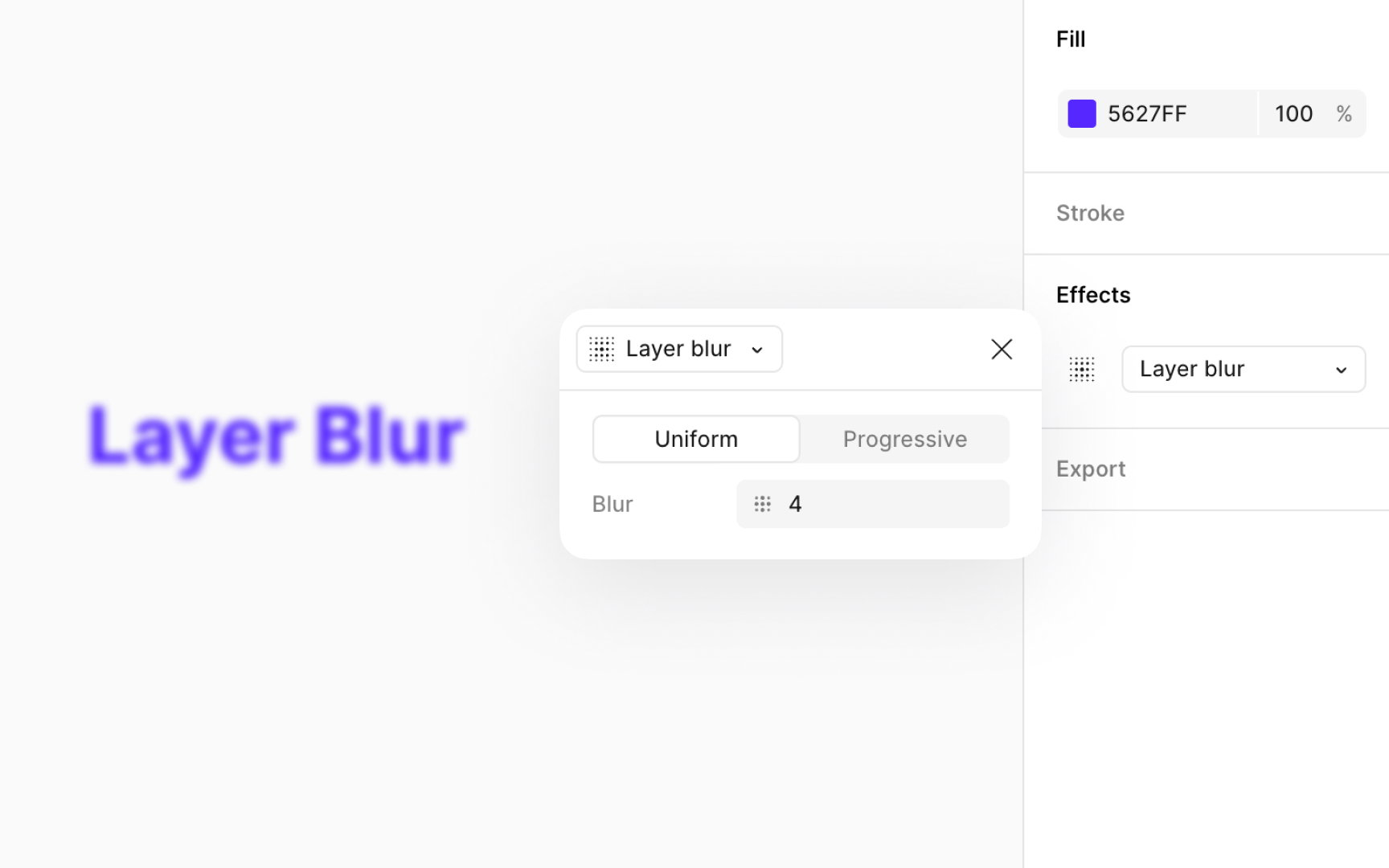
Blurs can improve your designs by adding a sense of motion, depth, or focus. They’re useful for obscuring sensitive data or personal details, reducing distractions, and emphasizing key elements. Blurs can also mimic camera effects like bokeh or depth of field. For backgrounds, a slight blur can help foreground elements stand out. For anonymizing, increase the blur until details are fully hidden.
To add a blur effect, go to the Design panel, open the Effects section, and choose Layer blur from the dropdown. Click the Effect settings icon, and you’ll find two types of Layer blur:
- Uniform blur: Applies a constant blur across the entire layer. Select the Uniform option and enter the desired blur value.
- Progressive blur: Applies a blur that increases or decreases gradually across the layer. Select the Progressive option to adjust the start and end blur values. This works well for simulating depth or directional focus without using extra layers or masks.
Top contributors