Creating and managing color variables in Figma
Color variables in Figma turn your color system into a stable, reusable part of the design system. Instead of applying hex codes manually, each palette color becomes a single variable that can be used across components. Updating the variable updates every element that relies on it, which keeps the color system consistent across screens and states.
To open the Variables panel, make sure no layer is selected on the canvas. Then look at the right sidebar and click the icon with two sliders next to the word “Variables.” This expands the panel where you can create and manage all color values.
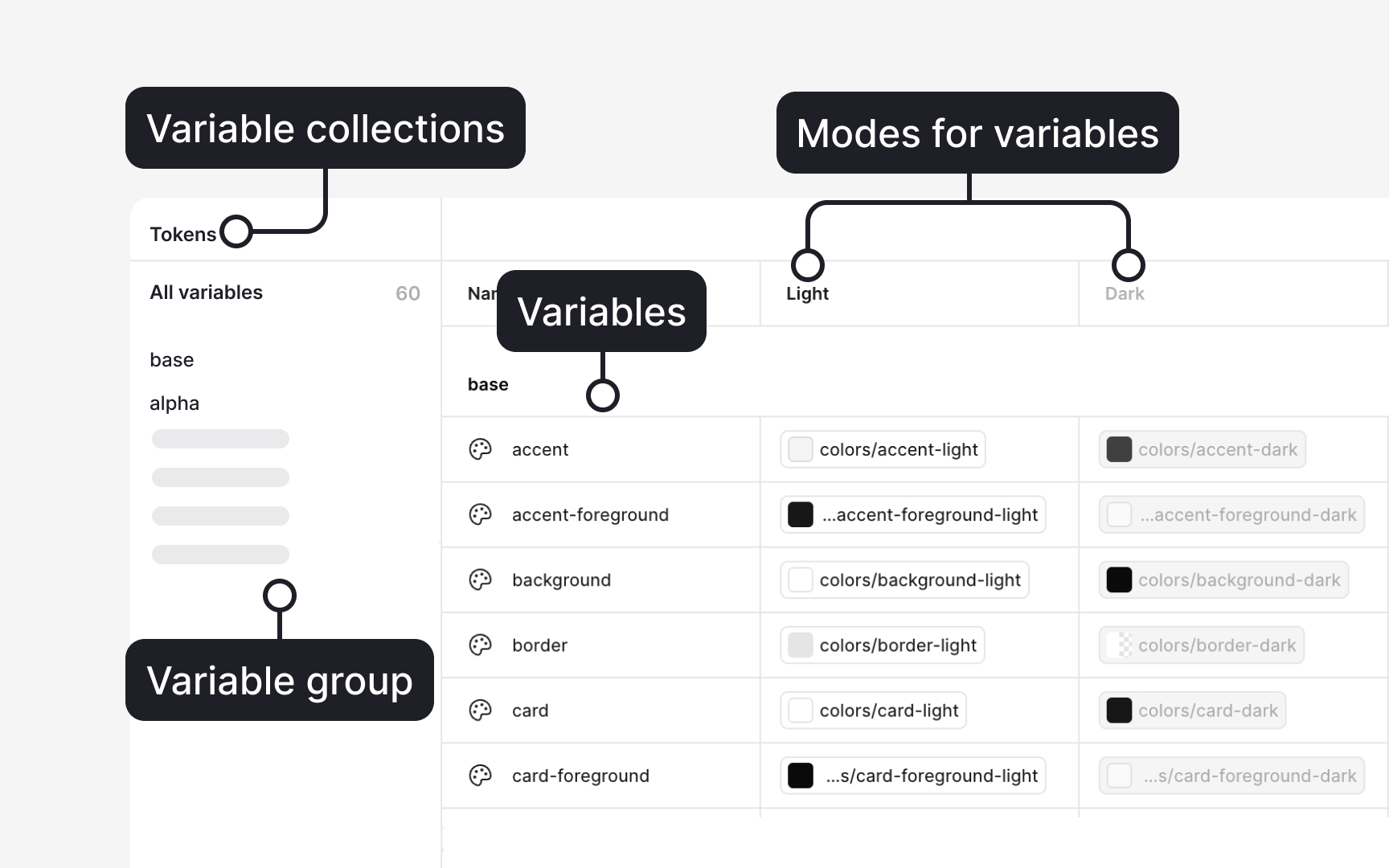
Click Create variable, choose Color, and give the variable a clear name. Use Collections to group related variables, such as “Brand,” “Functional,” or “Surfaces.” Collections help keep the palette organized and make the system easier to maintain as it grows.
To connect variables, open a color variable, click the color field, and select Alias. This links the variable to another base value so changes cascade through the system. Collections also support Modes, such as “Light” and “Dark,” allowing the same variable to hold different values depending on the theme.[1]
Pro Tip: Use short, structured names like brand/blue-500 or surface/200. It keeps variables easy to scan when you work fast.
References
- Create and manage variables and collections | Figma Learn - Help Center