Shadow offsets
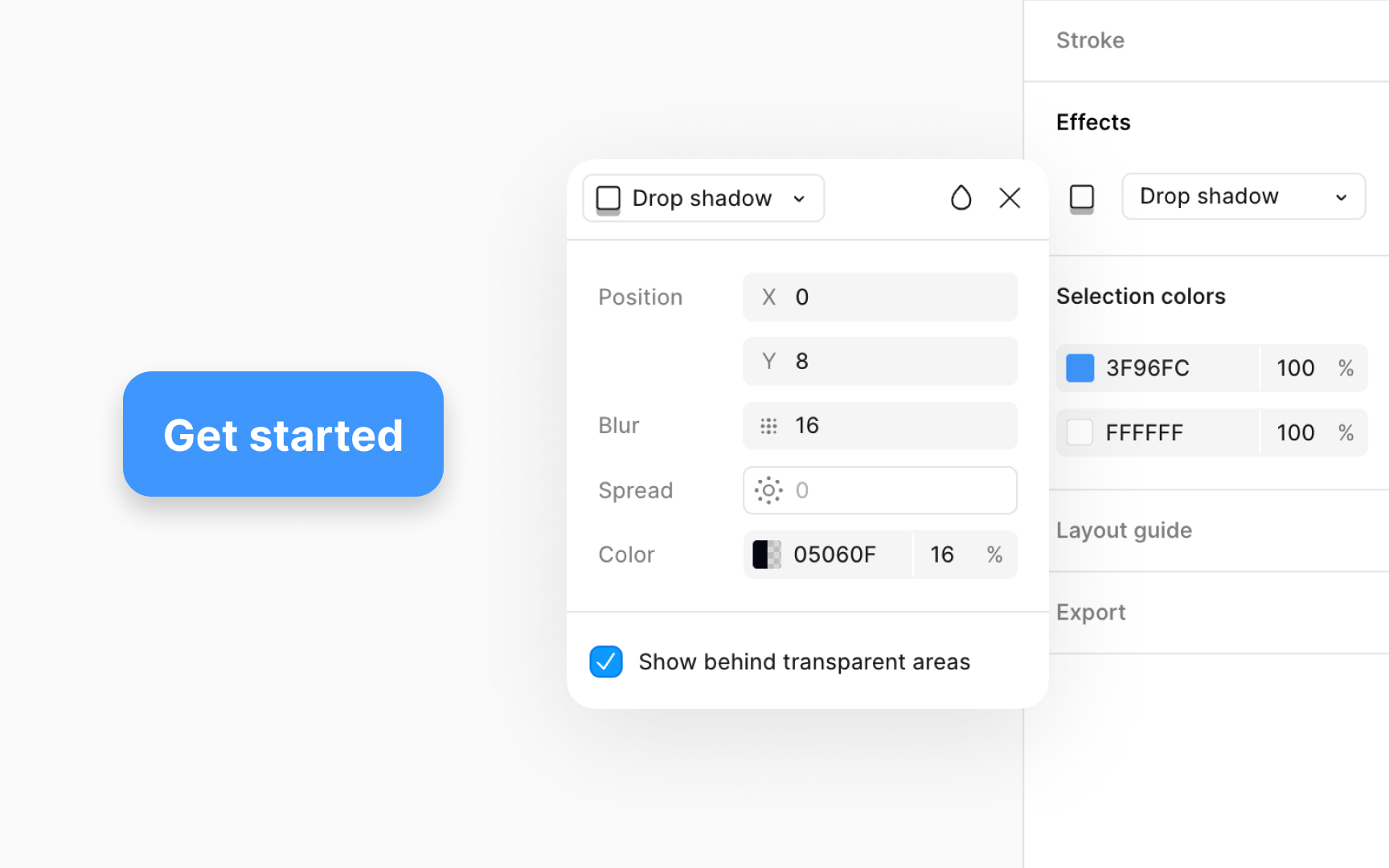
Shadow offsets along the X (horizontal) and Y (vertical) axes are essential for creating depth and dimension in your designs. By adjusting these offsets, you can simulate how a light source affects the shadow of an object, giving your designs a more realistic appearance.
- X offset: Moves the shadow left or right. This simulates the horizontal position of your light source. For example, a positive value moves the shadow to the right, suggesting the light comes from the left.
- Y offset: Moves the shadow up or down. This mimics the vertical position of the light source. A positive value here drops the shadow lower, indicating the light is above the object.
Using both X and Y offsets together, you can precisely control the shadow direction, making objects appear as though they're lifted off the page or embedded within it. This technique is perfect for UI elements, text, and icons, adding a layer of depth that flat designs lack.
To adjust the shadow offsets, go to the Effects section on the Design panel. Click on the Effect settings icon and manually enter the desired X and Y position values.