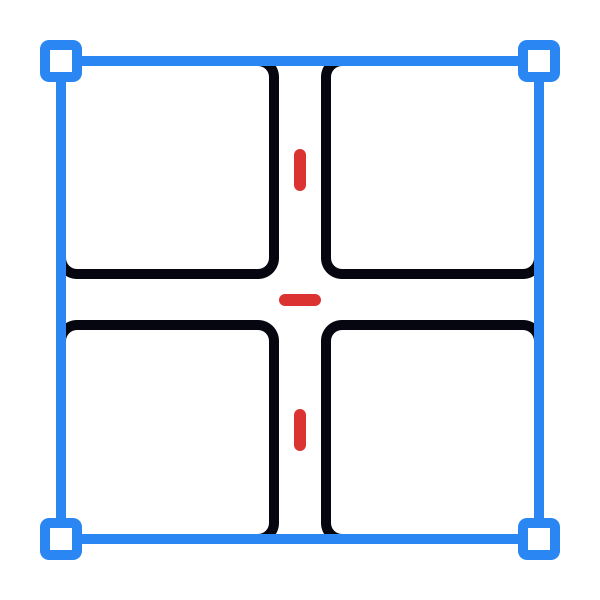
Snap to settings
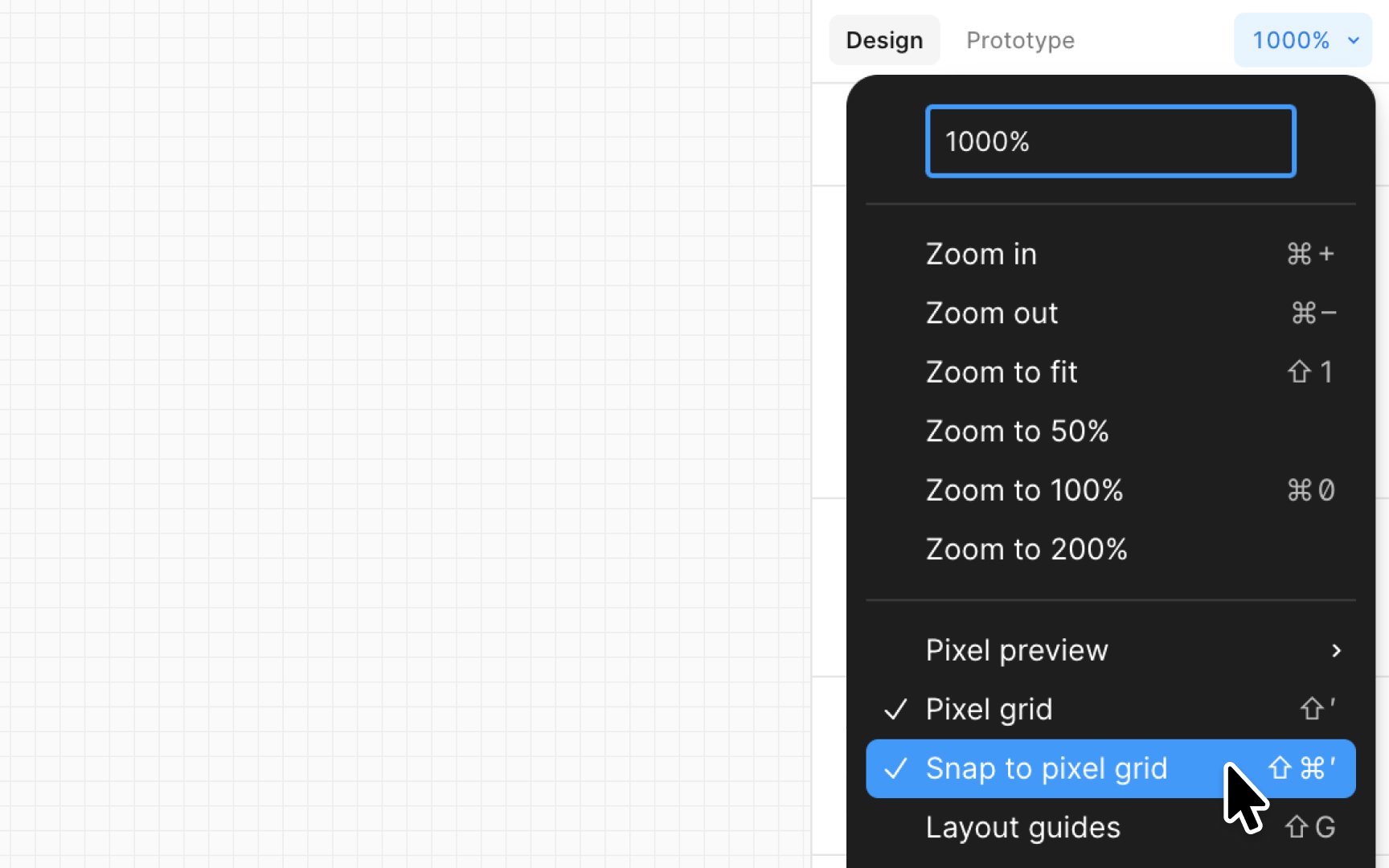
Snap to settings in Figma are like magnets for design elements, ensuring precision and tidiness. As you move or resize objects, or tweak vector points, snap to settings subtly guide your elements into perfect alignment with others on the canvas, signaled by a handy red guide.
Here's a snapshot of how it works:
- Snap to geometry: Exclusive to vector editing, this snaps vector points neatly to others, ensuring sharp, clean shapes.
- Snap to objects: Harmonizes objects by aligning their centers or edges, like puzzle pieces fitting together.
- Snap to pixel grid: This ensures crisp, clear visuals by aligning objects to a pixel grid, eliminating fuzzy edges or unintended blurs, especially important when exporting your design.
Toggle these settings via Preferences in the Main menu or find it in the Quick actions menu by using the shortcut:
- Mac: Command /
- Windows: Ctrl /
These are global settings, maintaining consistency across all your design files, making your design process smoother and your outcomes pixel-perfect.