Adding links to text
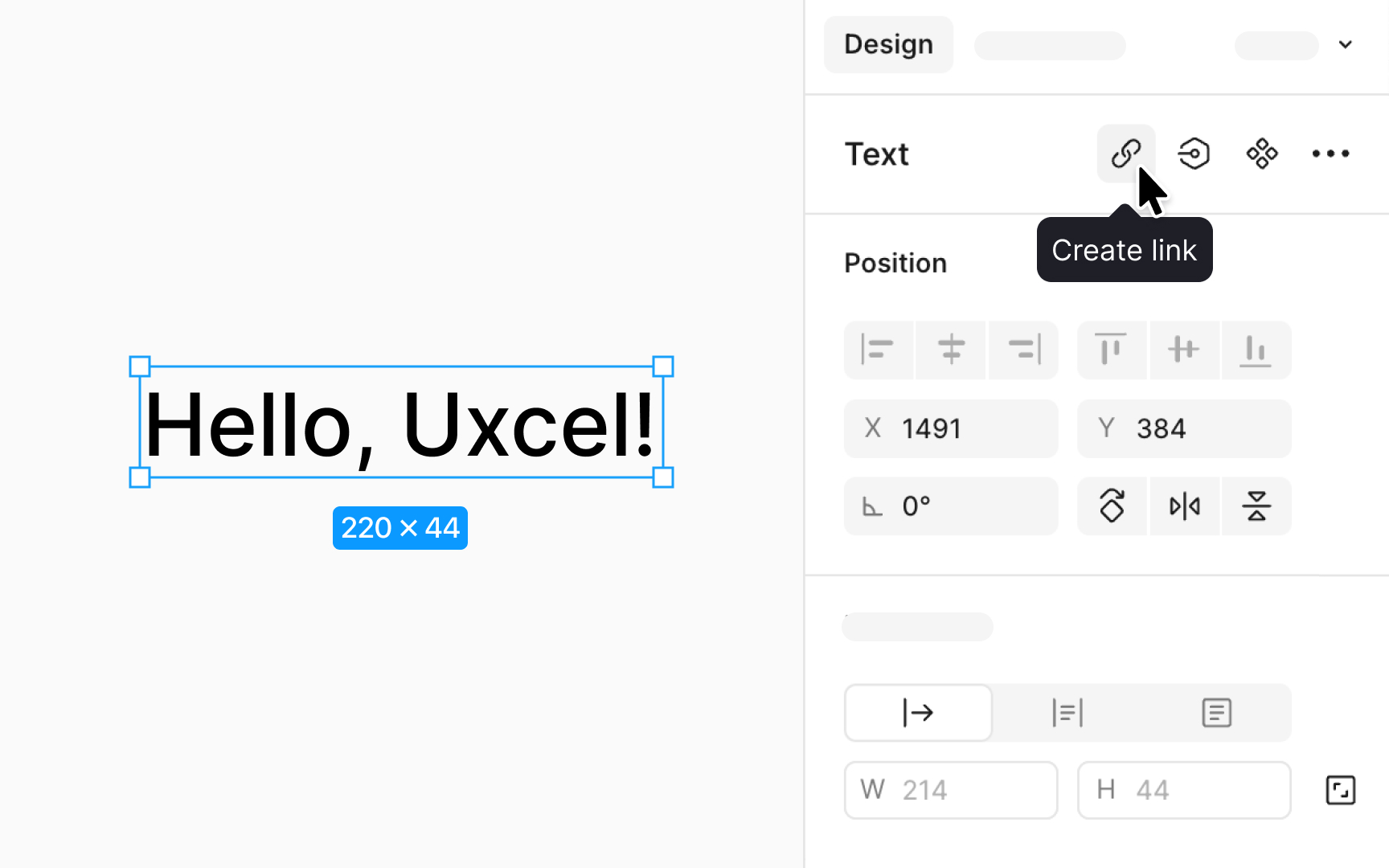
Adding a link to text in Figma is a straightforward process that enhances the interactivity of your designs, allowing you to direct users to websites, documents, or any online resource directly from your text. Here's how to do it:
- First, click on your text layer. If you're looking to link only part of the text, press Return (Mac) or Enter (Windows) to edit and then select the portion you want to link.
- You have a few options to add a link. After selecting your text, click the Create link button in the Design panel in the Text section. A text input will pop up above your text where you can type or paste the URL. Alternatively, you can use a shortcut:
- Mac: Shift Command U
- Windows: Shift Ctrl U
Pro Tip: You can paste a URL directly onto your selected text using Command V (Mac) or Ctrl V (Windows). To show the URL as clickable text, paste it twice.